AI PowerPoint generator / How to make a PowerPoint with AI
Guide
How to make a PowerPoint with AI
The mechanics take a minute. What you type into the box decides whether the deck is any good, so that's most of what follows.
Step 1 — Write a brief, not a topic
A topic gives the model nothing to work with, so it fills the gap with the most generic possible treatment of the subject. That's what people mean by AI slop.
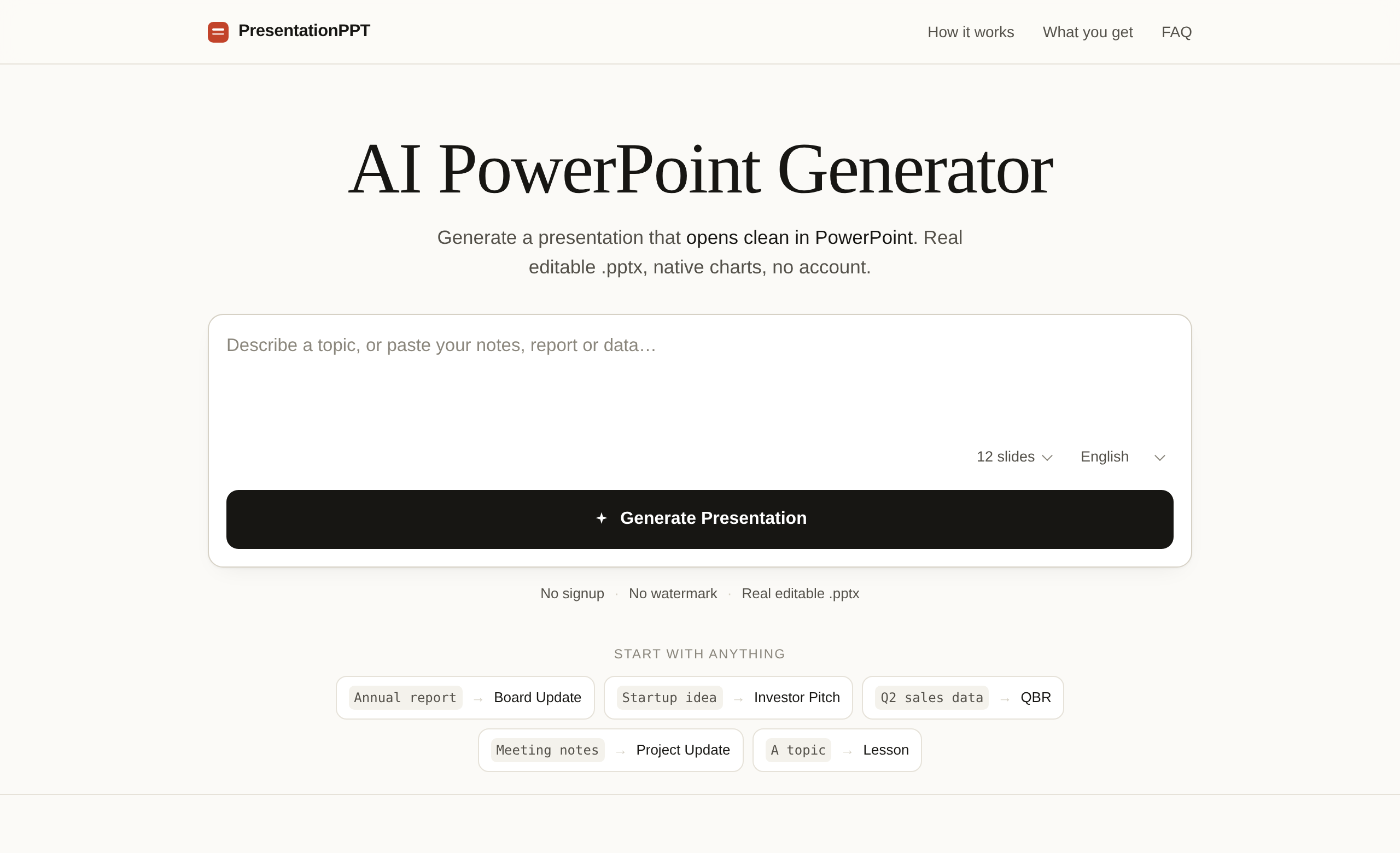
Compare these two inputs for the same meeting:
Quarterly business review for our SaaS company
Quarterly business review. Revenue by quarter: Q1 1.8M, Q2 2.4M, Q3 2.2M, Q4 3.1M. Net revenue retention fell from 112% to 97% in Q3 after two enterprise churns. Support tickets doubled. We shipped SSO and an admin console. Decision needed on whether to hire two CSMs or build self-serve onboarding.
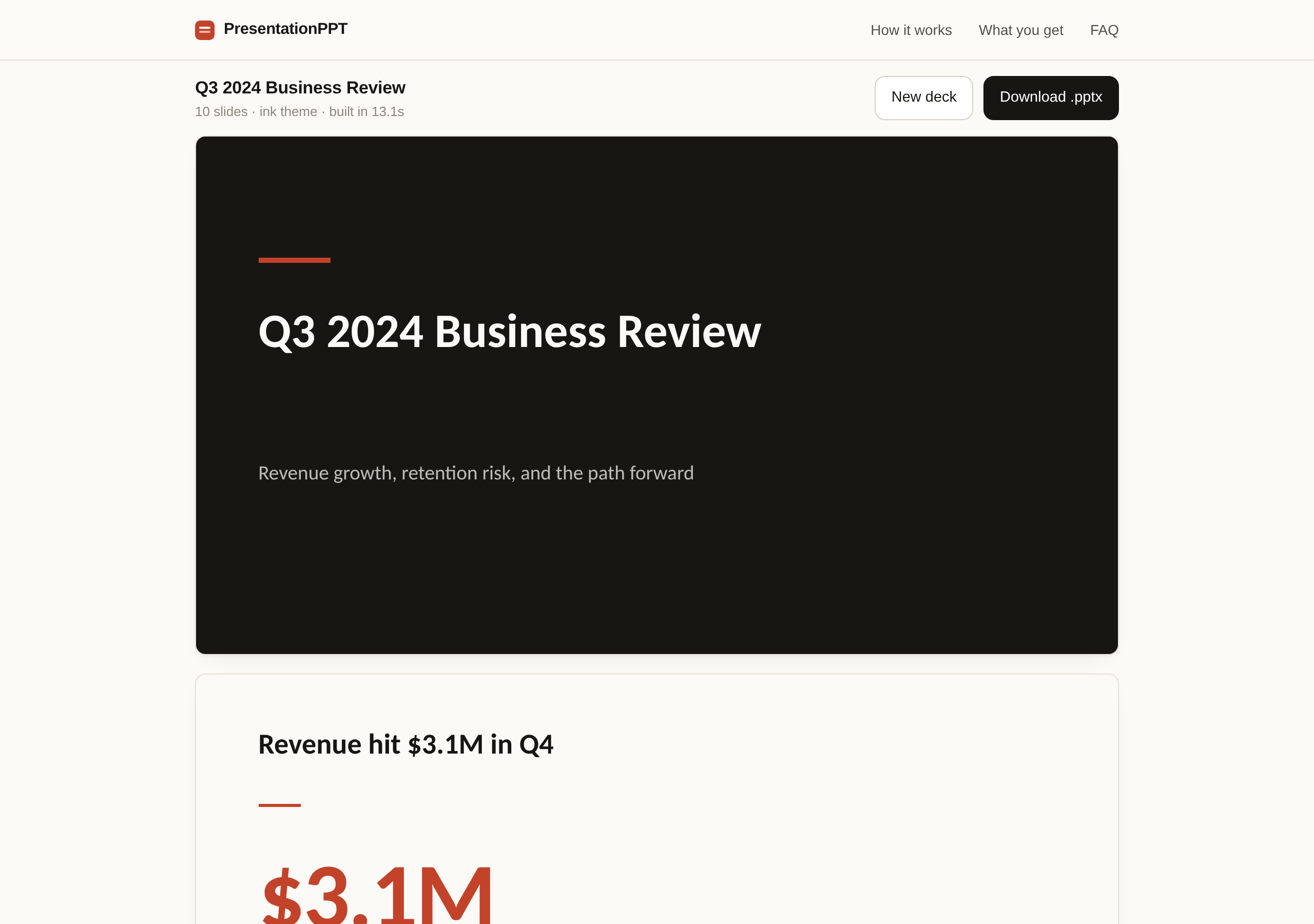
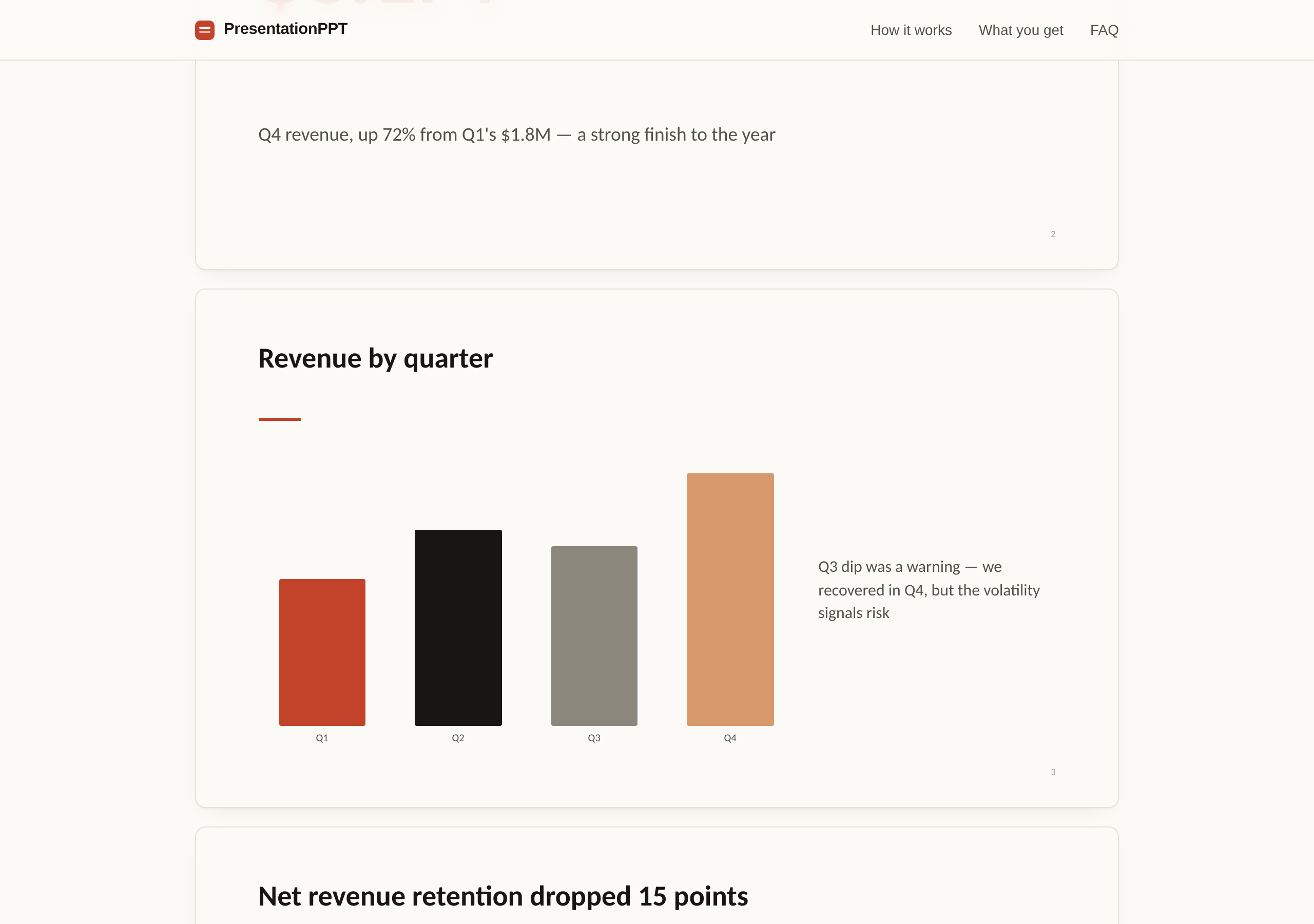
The first produces a plausible template. The second produces a chart of your actual revenue, a slide that names the retention drop as the problem, and a closing slide that puts the decision in front of the room. Same tool, thirty seconds more typing.
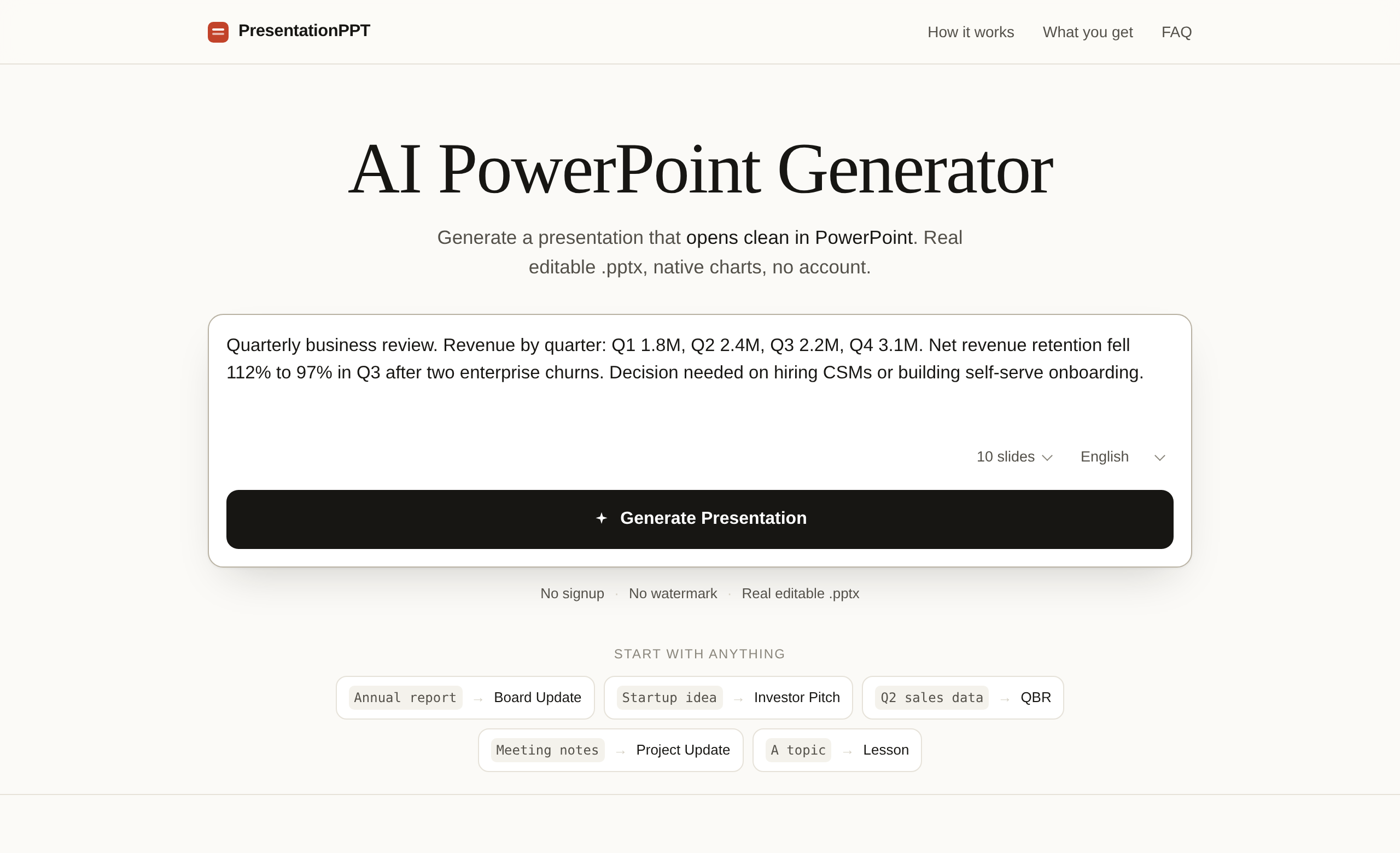
Step 2 — Pick a slide count you would actually sit through
Ask for fewer slides than instinct suggests. Ten slides of argument beats eighteen of padding, and a shorter request forces the model to decide what matters instead of covering everything.
One honest caveat from our own measurements: 24 of 30 decks came back at exactly the requested count. The rest were one or two out. Treat the number as a target rather than a contract.
Step 3 — Generate
Median generation time across the run was 15.4 seconds. Long or complex briefs take longer — the 90th percentile was 49.5 seconds and the slowest deck, a 16-slide request built from several hundred words of pasted prose, took 88.8 seconds.
Step 4 — Read it before you present it
The generator is instructed not to invent statistics, and charts are only built from numbers you supplied. That is a meaningful constraint, and it is not a guarantee. Read the deck. If you see a number you didn't give it, don't trust it.
Step 5 — Download and finish it in PowerPoint
The download is a .pptx. Open it, and everything behaves the way a hand-built deck behaves: text boxes are text boxes, charts open a worksheet when you choose Edit Data, and speaker notes are in the notes pane. Rewrite the two lines you disagree with and you're done.
Five things that change the output
Give it your numbers
Of the 30 decks in our run, 23 came back with a chart built from figures in the brief. Without numbers there is nothing to chart, and you get prose on slides.
Do not pre-summarise your notes
Paste them raw. Summarising first throws away the detail the model would have used to decide what deserves a slide, and you end up summarising a summary.
Say who it is for and what you want out of the room
"For the board, we need a decision on hiring" changes the structure. It moves the decision to the front and cuts the background section that a teaching deck would need.
One number is a callout, not a pie chart
A single figure rendered as a three-slice pie is one of the most recognisable tells of a generated deck. If you have one number that matters, say so, and it becomes a full-slide callout instead.
Titles should be claims
"Churn doubled in Q2" is a slide title. "Churn" is a label. If you write your brief in claims, the deck comes back in claims.
What it will not do
- Hit your slide count exactly, every time.
- Invent data you did not give it — by design, but it means a thin brief gives a thin deck.
- Read a file yet. We're building uploads for PDF, Word and Excel next.
- Match your brand. Brand kits are a planned Pro feature and are not built yet.
The composer is on the homepage. No setup, no account.
Open the AI PowerPoint generatorRelated: why AI-generated decks break in PowerPoint · example presentations with the files to download